gemail/srvskp-demo-channels
Demo of the SrvSKP communication server with two types of channels (TCP and UDP).
3.2K
gemail/srvskp-demo-channels repository overview
Demo of the SrvSKP communication server with two types of channels (TCP and UDP) with data exchange between two databases.
This is dockerized version of communication server SRVSKP. The demo presents data exchange between two databases with two type of channels - TCP and UDP. The channel TCP uses TLS encryption. The UTP channel uses chacha20 algorithm to encrypt packets.
What is communication server SrvSKP?
The SrvSKP communication server is software used to integrate IT systems in terms of exchanging data between them in an automated manner. In particular, it allows for the integration of database systems based on various database engines, whereby it is possible to transfer data between databases with completely different database schemas (i.e. the source tables do not have to be identical to the target tables). Thanks to the communication server, there is no need to build a communication layer and you can focus entirely on the data processing logic. The figure below shows a general diagram of the server operation and its capabilities.
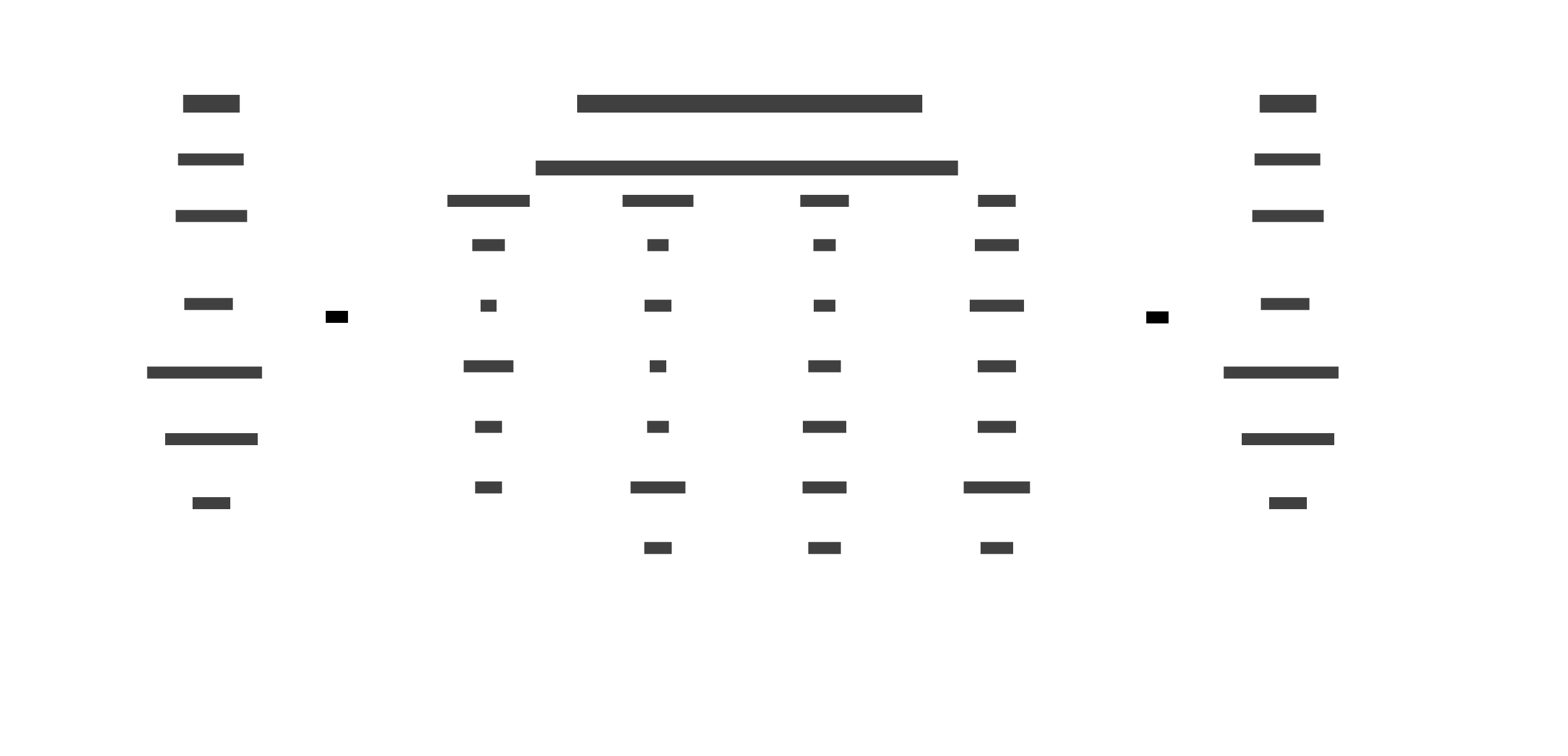
The modular structure of the server and the use of the plugin mechanism allow for free modification of the transmitted data, but also for strengthening security through the use of mechanisms such as compression or multiple data encryption. The server allows for the combination of many transmission channels based on various transmission protocols, e.g. tcp/ip, udp or multicast. It also provides support for retransmission in the event of data transfer failure. The communication server is also excellent for downloading information from external IT systems (especially websites), processing it and saving it in local databases.
Examples of implementation
Due to the open architecture of the system, the scope of its implemention is very wide and diverse.
Below we have tried to list some of them:
-
transferring data between databases with different schemas and data structures,
-
downloading data from the Internet and saving it in local databases,
-
downloading data from local databases and sending it to external/Internet systems,
-
sending data to data warehouses or other databases,
-
reading from measurement devices (RS232, RS485 or IP sensors) and saving the results in the database,
-
sending data between different message brokers, e.g. Kafka or Rabbit MQ.
A few words about architecture
The architecture of the SrvSKP communication system is based on so-called sensors, which are nothing more than separate threads launched within the server. We distinguish two types of sensors:
-
offline – communication sensors operating within a single thread in synchronous mode (after sending a query, the thread waits to receive feedback), in the case of this type of sensor, the connection is resumed each time a query is sent,
-
online – communication sensors operating in asynchronous mode, where we are dealing with two threads: receiving and sending, the online sensor after establishing a connection maintains it all the time (in the case of stateful connections such as tcp/ip), after a possible connection loss it is established again as soon as it is possible (e.g. network problems disappear).
A special example of an offline sensor is the so-called cache (in the configuration attribute prot=”cache”). These are not communication sensors, but only for data processing. They most often operate based on additional plugins, e.g. XSLTMgDecode (translating input data from XML to another format, e.g. SQL queries). A set of plugins is provided with the server (we describe them later in the documentation), but you can also write your own plugins based on the template and attached examples to extend the functionality of the system.
Each sensor establishes a connection to a database, but not in every case it is involved in the operation of the sensor, therefore the system is supplied with the srvskp.db SQLite database, which can be used to connect to a sensor that does not necessarily work with a database (so-called internal database).
The second important element is sensors/servers db. These are cyclic threads that execute SQL queries to the associated database in order to detect changes in event tables. The names of event tables and the elements associated with them (triggers) can have any names, but the structure of the tables is predetermined. In the database, structures should be created as given below (example for the HSQLDB database):
CREATE TABLE cmd_out (
    id_cmd BIGINT GENERATED BY DEFAULT AS IDENTITY(START WITH 1),
    sensor character varying(60),
    text_cmd longvarchar,
    type_cmd character varying(3),
    state_cmd character(1),
    gate_cmd character varying(20),
    send_time character varying(25),
    send_err character varying(250),
    send_resp longvarchar);


CREATE TRIGGER i_ecmd_out AFTER INSERT ON cmd_out
FOR EACH ROW
BEGIN ATOMIC
DELETE FROM ecmd_out WHERE 1 = 1;
INSERT INTO ecmd_out (reg_time) VALUES (CURRENT_TIMESTAMP);
END;
There can be any number of event tables (as many as sensors/servers db) on a single database – then we need to define a separate sensor/server db for each of them. Within a single communication server, we can work with multiple databases and multiple event tables. The figure below shows a minimal set of sensors and db servers for transferring data between the source and target databases.
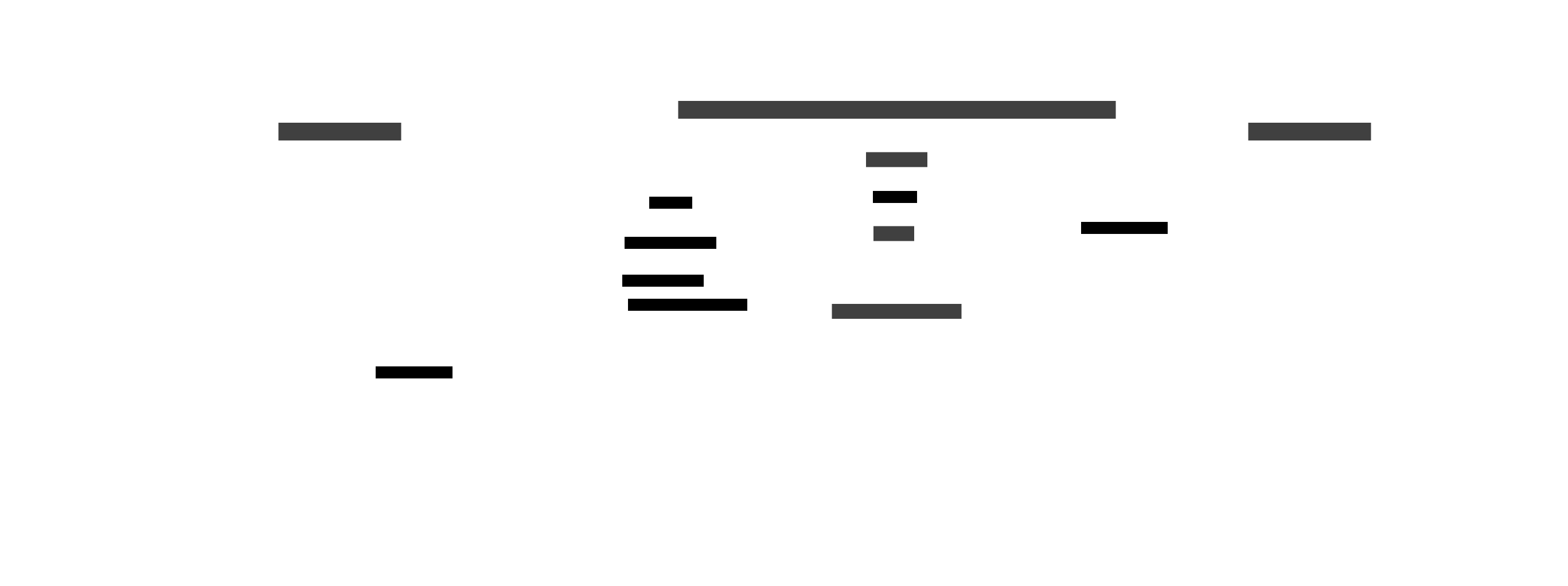
In a cyclical manner, the db server executes a query on the cmd_eout table, checking whether the value in the numer field has changed (increased) in relation to the previously read value (step no. 1 in the figure). If so, then all records from the cmd_out event table that meet the conditions are read (step no. 2 in the figure):
- state_cmd="N"
Then the read records (value of the text_cmd field) fill the transmission queues of the sensors according to the entry in the sensor field, e.g. a record with the entry sensor="ABC" is directed to the sensor's transmission queue named "ABC" etc. For such a record, the state_cmd field is changed to the value "W" (step no. 4 in the figure). The sensor receives the record from its queue and performs an action consistent with the sensor type and the actions defined in it. If it is a communication sensor, the buffer content is sent via a defined transmission channel with a further indicated protocol (e.g. tcp/ip, udp, multicast etc.) or the data can be transferred to the next sensor (defined in the snrcache attribute). When an additional SQL action is defined in the db-insert-string tag, then it is performed on the database associated with the given sensor (step no. 3 in the figure). If a plugin is associated with the sensor, before sending the data (and possibly after receiving the response), the data resulting from the used plugin is transformed.
Demo explanation
The figure below shows the configuration of the system based to instances of communication Server SrvSKP. In the real demo, for simplicity, all sensors were placed in one program instance but logically divided into node A and node B. Also, for simplicity, the figure below only presents communications in the Node A -> Node B direction. Node A is connected to node B by two separate communication channels. The CHLB->TLSB channel is based on encrypted TCP (TLS) communication, while the CUDPB->SUDPB channel implements communication based on the UDP protocol. Additionally, the Chacha20 algorithm is used to encrypt communication. An AtoB sensor was also created to simulate writing to the cmd_out transmission table for the CHLB channel. Sending via the CUDPB channel requires starting the database console (for Database A) and making an entry in the cmd_out table with the CUDPB channel indicated. By starting the console of database B and entering the transmission data for the SNDB channel in the cmd_out table (sensor=SNDB), you can send data from database B to database A via the TLSB channel.

Dataflow in real demo
In the presented example, data is transferred between sensors according to the scheme:
Channel TCP:
Database A --> AtoB --> CHLB --> TLSA --> RCVA --> binB-> DatabasB
- sensor AtoB - write data transmited from database A to database B (over
cmd_out) to channel CHLB - sensor CHLB - send data to sensor TLSA over TCP with encryption TLS
- sensor RCVA - receives data from TLSA and send data to sensor binB
- sesnor binB - receive data from RCVA and write data to database B (HSQL database baseB)
Channel UDP:
CUDPA --> SUDPA --> binA-> DatabasA
- sensor CUDPA - write data transmited to server SUDPA over UDP wih chacha20 encryption
- sensor SUDPA - send data to sensor binA
- sesnor binA - receive data from SUDA and write data to database A (HSQL database baseA)
Usage
You can run this demo simply:
docker run -itd -p 9999:9999 -e ENV_STR_LICENSE=<license_string> --name srvskp gemail/srvskp-demo-channels
Tip! Free license for two weeks you can download from the website Free License
Port 9999 will provide WebGUI console for the SrvSKP communication server
https://<address_ip_docker_host>:9999/command
or
docker run -itd -p 9999:9999 -p 8084:8084 -e ENV_STR_LICENSE=<license_string> --name srvskp gemail/srvskp-demo-channels
if you want metrics for prometheus:
https://<address_ip_docker_host>:8084/metrics
or check healthy:
https://<address_ip_docker_host>:8084/health
For a proper understanding of the operation of the SrvSKP communication server, it is recommended to log in to the running container:
docker exec -it srvskp bash
Starting internal console of communication server SrvSKP
After logging into the container, to start the communication server console, execute the command:
./runcmd.sh
If the server is working properly you will see the prompt:
demo@SrvSKP=>
First, use the snr or snrstat command to display a list of available communication sensors.
demo@SrvSKP=>snr
SENSORS:
Name            Status          CxErr   TxErr   RxErr   TxCount         RxCount         DBErr   CRestart        SnrCache
INF             ACTIVE[ACTIVE]  0       0       0       0               0               0       0
SNDSRV          ACTIVE[ACTIVE]  0       0       0       0               0               0       0               TCPSRV
RCVSRV          ACTIVE[ACTIVE]  0       0       0       0               0               0       0
TCPSRV          ACTIVE[ACTIVE]  0       0       0       0               0               0       0
binA            ACTIVE[ACTIVE]  0       0       0       1               1               0       0
binB            ACTIVE[ACTIVE]  0       0       0       1               1               0       0
SNDA            ACTIVE[ACTIVE]  0       0       0       0               0               0       0               TLSA
RCVA            ACTIVE[ACTIVE]  0       0       0       1               1               0       0               binA
TLSA            ACTIVE[ACTIVE]  0       0       0       0               1               0       0
CHLA            ACTIVE[ACTIVE]  0       0       0       1               0               0       0
SNDB            ACTIVE[ACTIVE]  0       0       0       0               0               0       0               TLSB
RCVB            ACTIVE[ACTIVE]  0       0       0       1               1               0       0               binB
TLSB            ACTIVE[ACTIVE]  0       0       0       0               1               0       0
CHLB            ACTIVE[ACTIVE]  0       0       0       1               0               0       0
AtoB            ACTIVE[ACTIVE]  0       0       0       1               1               0       0
BtoA            ACTIVE[ACTIVE]  0       0       0       1               1               0       0
SUDPA           ACTIVE[ACTIVE]  0       0       0       0               0               0       0               binA
SUDPB           ACTIVE[ACTIVE]  0       0       0       0               0               0       0               binB
CUDPA           ACTIVE[ACTIVE]  0       0       0       0               0               0       0
CUDPB           ACTIVE[ACTIVE]  0       0       0       0               0               0       0
Next you can display db servers (command db or dbstat):
demo@SrvSKP=>db
DB:
Name            Status  CNTLoop         SELLoop CMDLoop CFailed CRestart
DBI             ACTIVE  30              1       0       0       0
DB_A            ACTIVE  894             2       1       0       0
DB_B            ACTIVE  894             2       1       0       0
If we want to view details about a sensor, we use command identical to the sensor name:
demo@SrvSKP=>TLSA
SENSOR INFO:

----------------
TLSA
----------------
Status          : ACTIVE [ACTIVE]
Prot            : cache
Address IP      :
Port            :
Proxy IP        : null
Proxy Port      : null
Type            : offline
StsCmd          :
WriteResp       : all
iTime           : 100
iTimeError      : 1000
iTimeReconn     : 100
StsConn         : client connected [/127.0.0.1:49278]
CxCount         : 1
CxTime          : 2025-02-09 11:26:49
CxErrors        : 0
CxMsgErr        :
RxCount         : 1
RxErrors        : 0
RxTime          :
RxCharResp      : 10
RxResponse      :
                  test123
RxRespPrev      :
RxMsgErr        :
TxCount         : 0
TxErrors        : 0
TxTime          :
TxMsgErr        :
TRErrors        : 0
TRLoop          : 0
TcpPrmReq       : false
TcpTimeOut      : 0
TcpKeepAlive    : true
TcpNoDelay      : false
UdpPrmReq       : false
UdpPktSize      : 2048
UdpLoop         : -1
UdpTTL          : -1
UdpTimeOut      : 10000
UdpSndBuff      : 65535
UdpRcvBuff      : 65535
MaxRetrans      : 0
CRestart        : 0
MaxRestart      : 100
TimeoutRestart  : 5000
MaxFailed       : 10
DBErrors        : 0
DBLoop          : 0
INSLoop         : 0
UPDLoop         : 0
InsertSttm      :
DBSqlOut        : ---
DBactSqlOut     : ---
DBSqlIn         : ---
DBactSqlIn      : ---
DBUpdErr        : 0
DBUpdMsgErr     :
DbInsErr        : 0
DbInsMsgErr     :
LastError       :
DBProperties    :
Other available commands can be displayed using the h or help command:
demo@SrvSKP=>h
Commands:
[h]elp - display this help
[q]uit - exit from commandline mode
[db]stat    - all DB servers statistics
[snr]stat   - all sensors statistics
[cache]stat - statistics of queues (cache)
{name_of_sensor} net     - network statistics of sensor
{name_of_sensor} active  - sensor status change
{name_of_sensor} suspend - pause sensor
{name_of_sensor} status  - sensor status
{name_of_sensor} reconnect  - reset sensor connections
{name_of_sensor} restart    - restart sensor
{name_of_sensor} statreset  - reset errors statistic
{name_of_sensor} view       - display fragment of cache
{name_of_sensor} clean      - remove cache
{name_of_sensor} ip=1.2.3.4 - change sensor IP
{name_of_sensor} port=1234  - change sensor port
{name_of_sensor} snrcache=abc - change of the related sensor
{name_of_sensor} debug=<integer> - change sensor debug level
{name_of_sensor} cmd=a_b_c_d{CR}{NL} - send acommand to sensor
{name_of_sensor} - sensor statistics
Log analysis
Logs from process are available in directory: ./logs
- err.log - error log
Starting HSQLDB database console
If you want to observe changes in the database, run the HSQLDB database console (baseA):
./runHCON_A.sh
and run command:
sql> select * from users;
You should see something like this:
sql> select * from cmd_out;
ID_CMD  SENSOR  TEXT_CMD             TYPE_CMD  STATE_CMD  GATE_CMD  SEND_TIME  SEND_ERR  SEND_RESP
------  ------  -------------------  --------  ---------  --------  ---------  --------  ---------
     1  binA    TEST                 OUT       W          DB_A      [null]     [null]    [null]
     2  binA    TEST                 OUT       W          DB_A      [null]     [null]    [null]
     3  binA    TEST                 OUT       W          DB_A      [null]     [null]    [null]
     4  binB    test10               OUT       W          DB_A      [null]     [null]    [null]
     5  binB    test20               OUT       W          DB_A      [null]     [null]    [null]
     6  binB    test30               OUT       W          DB_A      [null]     [null]    [null]
     7  binB    test100              OUT       W          DB_A      [null]     [null]    [null]
Sending data from database A to database B
if you want to send data from database A to B, run SrvSKP console:
./runcmd.sh
and run command:
demo@SrvSKP=>AtoB cmd=text_to_send
or
demo@SrvSKP=>CUDPB cmd=text_to_send
Note! Sign space replace with sign _
Sending data from database B to database A
if you want to send data from database B to A, run SrvSKP console:
./runcmd.sh
and run command:
demo@SrvSKP=>BtoA cmd=text_to_send
or
demo@SrvSKP=>CUDPA cmd=text_to_send
Note! Sign space replace with sign _
Related links
Tag summary
Content type
Image
Digest
sha256:87eb0829e…
Size
138 MB
Last updated
5 days ago
docker pull gemail/srvskp-demo-channels