nicolasdorier/slack-invite-automation repository overview
Slack Invite Automation
A tiny web application to invite a user into your Slack team.
Inspired by How I hacked Slack into a community platform with Typeform and Socket.io's Slack page.
This project supports Heroku, Azure and Cloud Foundry.


Settings
You can set variables for your own purpose in config.js or environment variables.
config.js
Fill out config.js as your infomation.
community: your community or team name to display on join page.slackUrl: your slack team url (ex.: socketio.slack.com)slacktoken: Your access token for Slack. (see Issue token)inviteToken: An optional security measure - if it is set, then that token will be required to get invited.recaptchaSiteKey: An optional security measure - if it is set, andrecaptchaSecretKeyis set, then a captcha will be required to get invited.recaptchaSecretKey: An optional security measure - if it is set, andrecaptchaSiteKeyis set, then a captcha will be required to get invited.locale: Application language (currentlycs,de,en,es,fr,it,ja,ko,nl,pl,pt,pt-BR,tr,zh-CNandzh-TWavailable).
Environment Variables
You can set environment variables directly or in .env file.
If you want to use a .env file, create a file in the root called .env with the following key/value pairs.
(.env files are added to the .gitignore.)
COMMUNITY_NAME: Your community or team name to display on join page.SLACK_URL: Your Slack team url (ex.: socketio.slack.com)SLACK_TOKEN: Your access token for Slack. (see Issue token)INVITE_TOKEN: An optional security measure - if it is set, then that token will be required to get invited.RECAPTCHA_SITE: An optional security measure - used to enable reCAPTCHA.RECAPTCHA_SECRET: An optional security measure - used to enable reCAPTCHA.LOCALE: Application language (currentlycs,de,en,es,fr,it,ja,ko,nl,pl,pt,pt-BR,tr,zh-CNandzh-TWavailable).
Sample
COMMUNITY_NAME=socketio
SLACK_URL=socketio.slack.com
SLACK_TOKEN=ffsdf-5411524512154-16875416847864648976-45641654654654654-444334f43b34566f
INVITE_TOKEN=abcdefg
LOCALE=en
You can test your token via curl:
 curl -X POST 'https://YOUR-SLACK-TEAM.slack.com/api/users.admin.invite' \
 --data 'email=EMAIL&token=TOKEN&set_active=true' \
 --compressed
Heroku / Azure
Add the application settings that are defined in the environment variables above.
Run
Node.js is required.
$ git clone https://github.com/outsideris/slack-invite-automation.git
$ cd slack-invite-automation
$ npm install
$ npm start
You can access http://localhost:3000 on your web browser.

Run with Docker
It's easy to run this service if you have installed Docker on your system.
$ git clone https://github.com/outsideris/slack-invite-automation.git
$ cd slack-invite-automation
$ docker build -t slack-invite-automation .
$ docker run -it --rm -e COMMUNITY_NAME="YOUR-TEAM-NAME" -e SLACK_URL="YOUR-TEAM.slack.com" -e SLACK_TOKEN="YOUR-ACCESS-TOKEN" -p 3000:3000 slack-invite-automation
Issue token
You should generate the token in admin user, not owner. If you generate the token in owner user, a missing_scope error may occur.
There are two ways to issue the access token.
Legacy tokens
-
Visit https://api.slack.com/custom-integrations/legacy-tokens.
-
Click
Create token.
OAuth tokens
-
Visit https://api.slack.com/apps and Create New App.

-
Click "Permissions".

-
In "OAuth & Permissions" page, select
adminscope under "Permission Scopes" menu and save changes.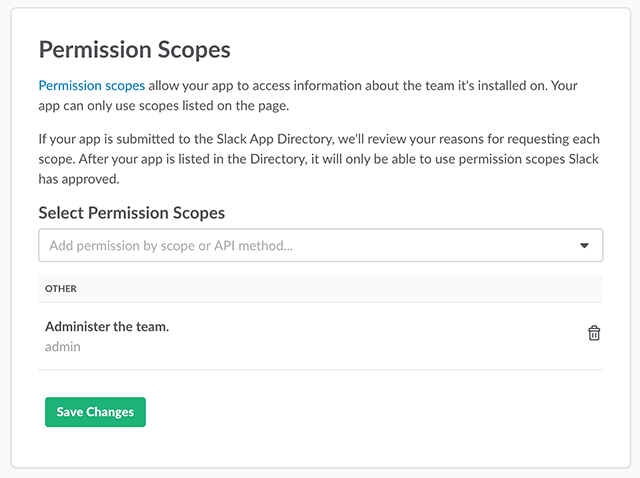
-
Click "Install App to Team".

-
Visit https://slack.com/oauth/authorize?&client_id=CLIENT_ID&team=TEAM_ID&install_redirect=install-on-team&scope=admin+client in your browser and authorize it.
- It authorizes the
clientpermission. Otherwise, you can see{"ok":false,"error":"missing_scope","needed":"client","provided":"admin"}error. - Your
CLIENT_IDcould be found in "Basic Information" menu of your app page that you just install. - Your
TEAM_IDcould be found in https://api.slack.com/methods/team.info/test
- It authorizes the
Tag summary
Content type
Image
Digest
Size
268.4 MB
Last updated
over 8 years ago
docker pull nicolasdorier/slack-invite-automation